
How to Bind your DJI O4 & O3 System Step by StepUpdated 8 months ago
This guide explains how to bind the DJI O4/O3 Air Unit with compatible DJI Goggles and DJI FPV Remote Controllers.
Notes & Compatibility
Supported Flight Controller System
Betaflight 4.3.0 or later
Supported DJI Goggles and Controllers
DJI Goggles 3 + DJI FPV Remote Controller 3
DJI Goggles N3 + DJI FPV Remote Controller 3
DJI Goggles 2 / Goggles Integra + DJI FPV Remote Controller 2
Important Notes:
Ensure all devices are updated to the latest firmware version.
If not, download the DJI Assistant 2 software to update the firmware on your DJI devices. Link: https://www.dji.com/at/o4-air-unit/downloads
Maintain a stable power source during the linking process.
Preparation
Fully charge all devices.
Power on the DJI Goggles, DJI Air Unit, and DJI FPV Remote Controller.
Wait about 10 seconds for all systems to initialize.
Step 1 – Bind Goggles with Air Unit
On the DJI Goggles, open:
Status > Switch > Select your Air UnitPress the Link button on your DJI Goggles
Press the Link button on the DJI Air Unit (small button next to the status LED).
The LED will blink and turn solid once the link is complete.
The camera image will appear in the Goggles.Select your SBUS protocol in the goggles.
Example:.gif)
Step 2 – Bind Remote Controller
Hold the link button on the DJI FPV remote controller until it starts beeping.
Example:.gif)
Then press the bind button on the Air Unit and Goggles again.
Tip: Look briefly into the goggles so the display reactivates through the light sensor.After a few seconds, the connection is established.
Step 3 – Betaflight Configuration
Open the Betaflight Configurator → CLI tab.
Enter the following commands:
1set sbus_baud_fast = on2save3Make sure the Goggles protocol is also set to FAST.
(Default: sbus_baud_fast = off, Goggles protocol = NORMAL)
Example: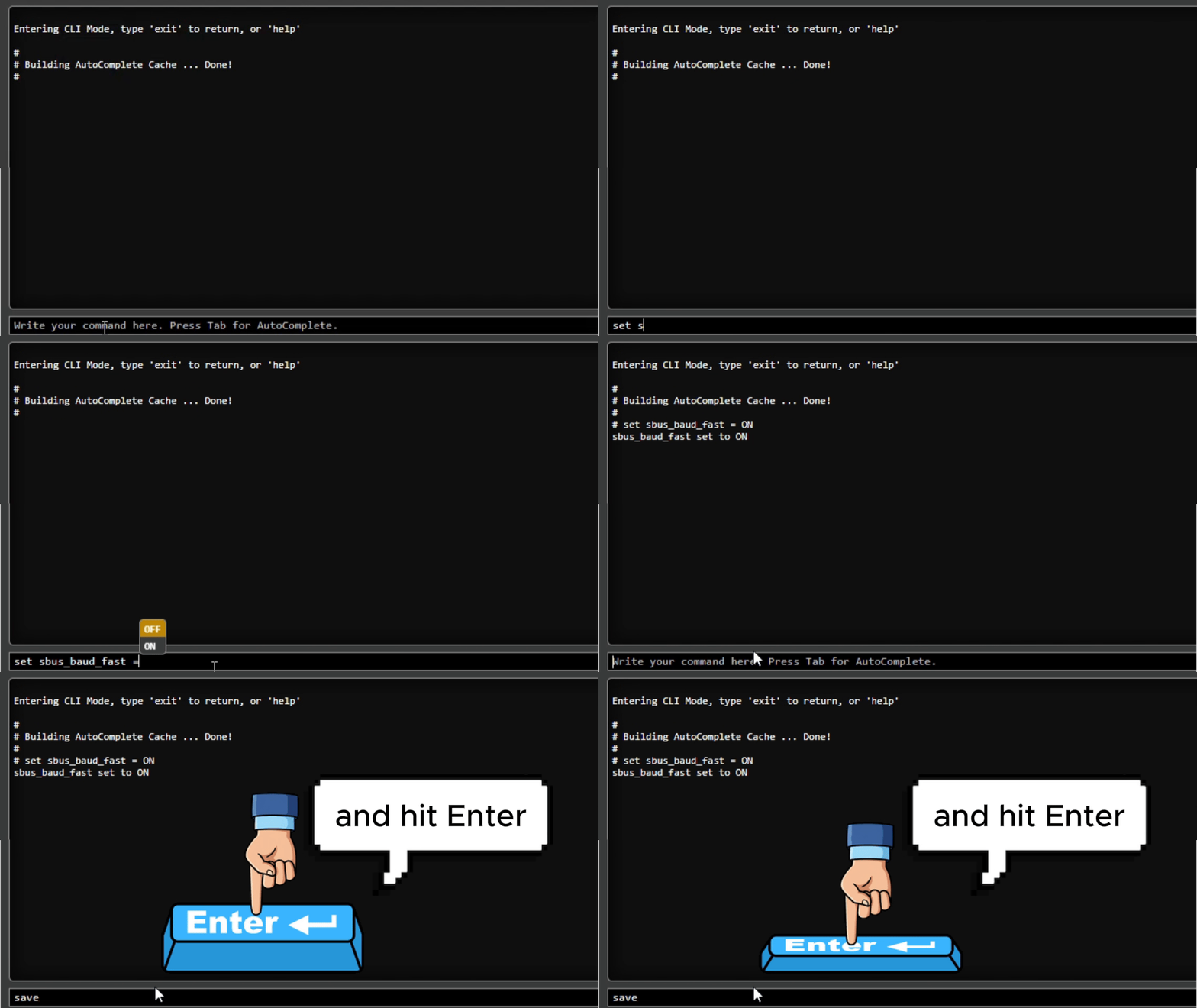
Important:
The transmission protocol of your goggles must match the protocol set in Betaflight (e.g., SBUS_FAST). If the protocols don’t match, Betaflight will not receive any stick inputs from your radio controller.
Final Check
The camera image should now be visible in the Goggles.
The controller should control the aircraft correctly.
If no controls respond, check again to make sure both protocols are set to the same value.